
If a Gmail message asks you to log in, pay, share a code, or click a link — pause. Gmail filters block most phishing, but the dangerous ones look perfectly normal in the inbox. This guide walks through every red flag Gmail surfaces (most users miss them), how to inspect a message safely, and what to do if you already clicked.
Check before you act: Scamil Email Checker · Scam Checker · Scammer Lookup
The 60-second Gmail phishing check
Before you act on any suspicious email, run this five-step check in your Gmail inbox. None of it requires technical skill.
- Click the sender name to expand the “From” line. Gmail shows the real address (e.g.
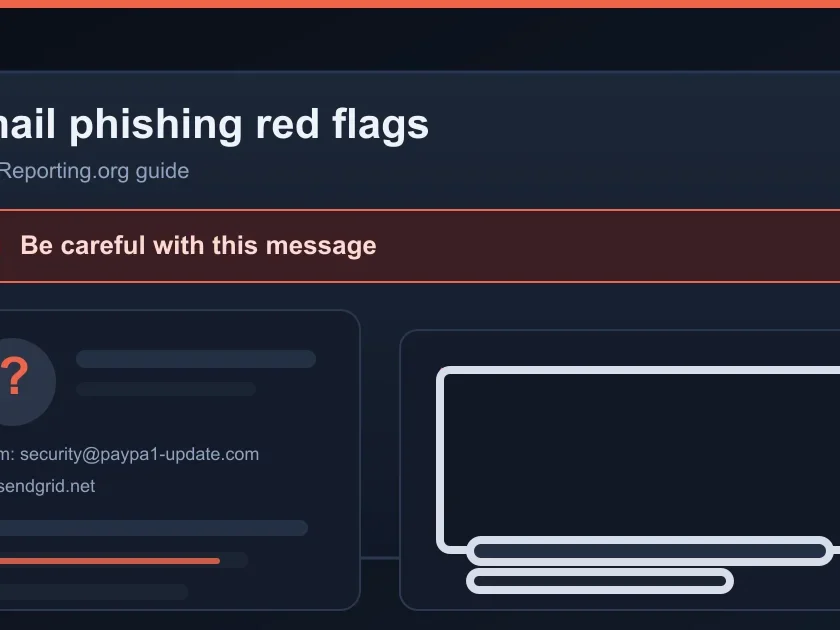
billing-update@am4zon-secure.help). Look for look-alike domains, extra hyphens, or non-Latin characters. - Look for the red question-mark avatar or “Be careful” yellow banner. Gmail adds these when the sender cannot be authenticated (SPF / DKIM / DMARC failed). Treat any “Be careful” banner as a confirmed phishing flag.
- Check for a “via” notice next to the sender (e.g. “Amazon <noreply@amazon.com> via mailgun.net”). Legitimate brand mail almost never goes via a third-party relay.
- Hover over every link without clicking. Gmail shows the real destination URL in the lower-left of the browser. If the link text says
amazon.combut hover showsbit.ly/xyzor anything other than amazon.com, it’s phishing. - Use the three-dot menu → Show original. The headers reveal SPF, DKIM, and DMARC results. Look for
PASSon all three. AnyFAIL,SOFTFAIL, orNEUTRALmeans the sender is impersonating the brand.
If two or more of these checks fail, treat the email as confirmed phishing. Do not reply, do not click, do not download attachments. Use Gmail’s Report phishing menu (three dots → Report phishing).
Gmail-specific red flags most people miss
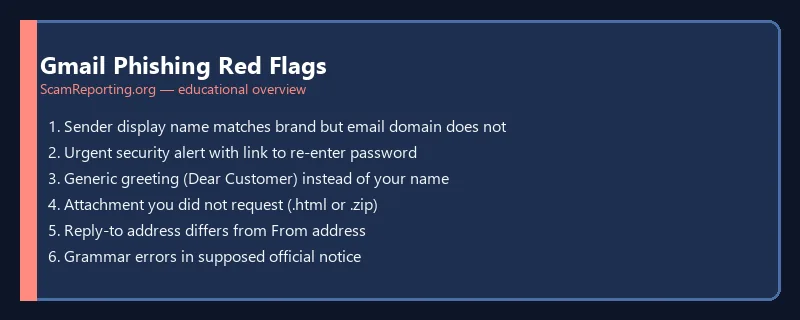
Gmail surfaces several phishing signals that look subtle but mean the sender is not who they claim to be. Each of these is worth treating as a confirmed red flag.
The red question-mark avatar
When Gmail cannot verify the sender’s domain, it replaces the sender avatar with a small red question mark. This appears next to the sender name in both the inbox list and the open message. Real banks, government agencies, and brands authenticate their domains — if you see the red ? next to a message claiming to be from your bank, it is not from your bank.
The “Be careful with this message” yellow banner
Gmail shows a yellow strip across the top of the open message reading “Be careful with this message” when the sender failed multiple authentication checks or matches a known phishing pattern. This is Gmail’s strongest in-line warning short of moving the message to Spam. Never ignore it.
“via” sender markers
When you see something like “Bank of America <alerts@bankofamerica.com> via sendgrid.net”, the part after via is the actual server that sent the mail. Real Bank of America, Amazon, IRS, and similar institutions send through their own infrastructure or major enterprise-grade relays — not through services that anyone can sign up for in five minutes. A “via” marker pointing at a generic SMTP service is a strong phishing tell.
Reply-To that doesn’t match From
Click the small triangle next to the sender name and look for a Reply-To: address. Phishers set Reply-To to a webmail address (gmail.com, outlook.com, free webmail) so any reply goes to them, not to the impersonated brand. If From says support@chase.com but Reply-To says chase.fraud.team@gmail.com, it’s phishing.
External sender warning
If you use Gmail for work (Google Workspace), your admin may show an “External sender” banner when a message comes from outside your organization. A message claiming to be from your CEO but flagged as external is a classic <a href="”>business email compromise pattern.
How to read the Show Original headers
The single most reliable test is the Show Original view. From the open message, click the three-dot menu in the top right and choose Show original. A new tab opens with the full message source. At the top you’ll see a summary table.
Look for these three lines:
- SPF: PASS — the sending IP is authorized for the domain.
FAILorSOFTFAILmeans the sender forged the domain. - DKIM: ‘PASS’ with domain matching the brand — the message was cryptographically signed.
NEUTRALor no DKIM at all from a major brand is suspicious. - DMARC: ‘PASS’ — the brand’s DMARC policy was honored.
FAILis the cleanest phishing indicator.
A genuine email from a major bank or platform will show PASS on all three. Anything else is impersonation until proven otherwise.
Common Gmail phishing scenarios
“Unusual sign-in” or “New device” alerts
Phishers send fake Google or bank login alerts to trick you into “securing” your account by clicking through and entering credentials on a look-alike page. Real Google security alerts come from no-reply@accounts.google.com with full SPF/DKIM/DMARC PASS. When in doubt, never click the email link — go to myaccount.google.com/security directly to check sign-in activity.
“Your Google Drive storage is full”
A common pattern: fake storage-full warnings with a “Buy more storage” or “Verify account” button. Real Google sends these from storage-noreply@google.com, and the action is always managed inside the Google One settings page — never via a button in an email.
Calendar invites from unknown senders
Phishers send Google Calendar invites containing scam links because the invite shows up directly on your calendar without you doing anything. Turn off automatic event addition: Calendar → Settings → Event settings → Automatically add invitations → No, only show invitations to which I’ve responded.
Shared Google Docs from strangers
“Someone shared a document with you” emails can lead to phishing pages styled to look like Google sign-in. Hover the document link — the real Google Docs URL always starts with https://docs.google.com/. Anything else is impersonation.
Gmail attachments asking you to enable macros
Real shared documents never need macros to view. A Word, Excel, or PDF attachment that opens to a “Enable editing / Enable content” prompt is almost always carrying malware. Close the file and report the email.
How to report a phishing email in Gmail
Reporting phishing in Gmail is the strongest single thing you can do — Google uses your report to refine filters for everyone.
- Open the suspicious message.
- Click the three-dot menu in the message header (next to the reply arrow).
- Choose Report phishing. (Reporting it as spam alone is less effective — phishing has its own queue.)
- Optionally, also report to the FTC at reportfraud.ftc.gov if you lost money or shared data.
- If the phishing impersonates a real brand, forward to that brand’s reporting address: Amazon (
reportphishing@amazon.com), PayPal (spoof@paypal.com), Apple (reportphishing@apple.com), and most banks have a similar address listed on their security pages.
What to do if you already clicked or replied
Even if you noticed the phishing only after acting, you can still cut your losses. Speed matters most in the first hour.
- If you entered your Google password: change it immediately at myaccount.google.com/security, turn on 2-Step Verification, and review “Recent security activity” for sign-ins from devices or locations you don’t recognize. Sign out all other sessions.
- If you entered a bank password or card details: call the bank using the number printed on your card — not a number from the email. Ask them to freeze the card and flag the account for monitoring. See our <a href="”>Zelle and bank fraud guide.
- If you shared your Social Security number: follow our <a href="”>SSN identity-theft recovery steps — credit freezes, IRS PIN, and IdentityTheft.gov plan.
- If you downloaded a file or opened an attachment: disconnect from the internet, run a full malware scan, and consider taking the device to a trusted technician. For business devices, alert IT immediately.
- If you replied: stop replying. Phishers use replies to confirm the address is live and to socially engineer further. Report the original email and block the sender.
Beware of “recovery” follow-ups: Phishers often follow up successful attacks with fake security-team messages offering to “recover” what they stole — for an upfront fee. See <a href="”>recovery room scam red flags.
Make your Gmail harder to phish
These settings take five minutes total and block most common Gmail phishing routes.
- Turn on 2-Step Verification (link). Use an authenticator app or hardware key — SMS codes can be SIM-swapped.
- Consider Google’s Advanced Protection Program if you handle sensitive data or money. It requires hardware security keys for sign-in and blocks unverified app access.
- Review third-party app access (link) and revoke anything you don’t recognize.
- Disable automatic Calendar invites as described above.
- Use a password manager. Password managers refuse to autofill on look-alike domains — an early warning that catches phishing before you do.
Frequently Asked Questions
Is a “Be careful with this message” warning in Gmail always phishing?
Not always — it can occasionally appear on legitimate newsletters or smaller senders that don’t fully authenticate. But for anything asking you to log in, pay, or share personal data, treat the warning as confirmed phishing and do not act on the message.
Can a phishing email reach my inbox even if Gmail’s filters are good?
Yes. Targeted phishing (also called spear-phishing) often slips past automated filters because each message is custom-crafted and sent in low volume. Gmail’s filters are excellent at bulk attacks; they are weaker at hand-tailored ones. Your eye for the red flags above is the second line of defense.
What does it mean when an email is “via mailgun.net” or “via sendgrid.net”?
It means the email was sent through a third-party email service. Some legitimate small businesses do use these services, but major brands almost never do. If a message claims to be from your bank or the IRS and is marked “via” a generic relay, it is almost certainly phishing.
Should I forward the phishing email to anyone?
Use Gmail’s Report phishing first. After that, if the phishing impersonates a specific brand, forward the original message to that brand’s phishing inbox (Amazon: reportphishing@amazon.com; PayPal: spoof@paypal.com; Apple: reportphishing@apple.com). If you lost money, also file at reportfraud.ftc.gov.
How do I know if my Gmail account was already compromised?
Visit myaccount.google.com/security-checkup. Google shows recent sign-ins, devices with access, and recovery-info changes. If anything looks off — unfamiliar device, sudden change to recovery email or phone — change your password, sign out all sessions, and turn on 2-Step Verification immediately.
Last reviewed: June 2026. Sources: Google Safety Center, FTC consumer alerts, Anti-Phishing Working Group (APWG).
Current prize-email sample: Fake Azim Premji Foundation €1.5M lottery email — Gmail contact + unsolicited foundation prize.
Was this guide helpful?
Your feedback helps us prioritize updates. We do not collect any personal data.
Thanks — recorded.